Thirty Students, One Chart, and the Permissions In Between
How shared chart drawing works in a trading classroom: real-time sync, named cursors, and rank-based permissions that control student annotations.
The first time you open shared chart drawing in a trading classroom, the sensation is odd. You are used to being the only hand on the chart. Now there are thirty hands, each with a name floating beside its cursor, each capable of dropping a trend line wherever it likes. The tool works. The question is whether you can keep the room useful once everyone discovers that it works.
What follows is the mechanics — how a Traderise room handles collaborative charting — and then the controls that keep the session from turning into a wall of overlapping Fibonacci fans.
How Shared Chart Drawing Works in a Trading Classroom
A Traderise room is a shared chart. When you create one, everyone who joins sees the same price action on the same surface. There is no image to paste and no feed to watch. The chart itself is the room.
Students draw with the same tool set the teacher has: trend lines, horizontal lines and rays, channels, Pitchfork, Fibonacci retracement and extension, rectangles and ellipses, text labels, and measure tools. Every cursor carries the name of the person holding it, so you always know who is drawing what. Drawings sync as they are made and moved — no refresh, no waiting for the next person's screen to catch up.
Chat and voice sit inside the same room as the chart, so a student can ask a question while pointing at the exact bar they mean. That is the room your class answers back in: a single space where instruction, annotation, and discussion happen on top of the same price data.
What Happens When Every Student Draws at Once
This is where teachers hesitate. Multi-user drawing sounds chaotic, and it can be if every student has unrestricted access at all times.
Every shape that lands on the chart is visible to the whole room immediately. If one student draws a support line and another draws a channel, both appear in real time. Every shape stays draggable after it is drawn, and the edit reaches the rest of the room the same way the drawing did. A student repositions a trend line and everyone sees the move as it happens.
The cursors help more than you might expect. Because each one carries a name, you can watch a student's reasoning unfold on the chart before they say a word. That is a genuine teaching advantage — you catch a misread as it forms, not after a student has built three more lines on top of it.
The risk is clutter. Thirty students all drawing at once can bury the price action under a pile of rectangles and retracements. That is not a software problem. It is a classroom-management problem, and the fix is permissions.
Controlling Who Can Draw: Rank-Based Permissions
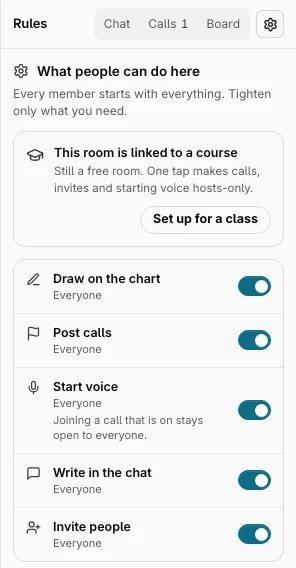
Drawing rights in a Traderise room are rank-based, not per-person. You assign students to a rank, and the rank determines what they can do on the chart.
Three rows matter:
Add/Remove Drawings. Turn this off for a rank and nobody holding that rank can place a shape on the room chart or remove one. Turn it on and they have the full drawing toolkit.
Edit Drawings. This controls whether a student can move or modify a shape already on the chart. You might want students to draw but not drag each other's work around. Turning off Edit Drawings while leaving Add/Remove on gives you exactly that.
See Other Users' Cursors. This decides whether a student sees the rest of the class on the chart or only the teacher. During a lecture you might want students watching your cursor alone. During a group exercise you turn cursors on so students can follow each other.
A rank can be changed while the room is open. That means you can lock drawing at the start of a lesson, open it for an exercise, and lock it again for review — all without anyone leaving the room. A surface the teacher hands out and takes back as the lesson requires.
Cleaning Up the Chart Mid-Lesson
Because Add/Remove Drawings is a rank permission, the teacher's own rank can retain removal rights while the student rank does not. If a student's drawing is cluttering the view, you take it off.
If you want students to clean up their own work, leave Add/Remove on for their rank. If you would rather they not touch anything once it is placed, keep Add/Remove on but turn Edit Drawings off — they can draw and delete, but they cannot drag or reshape.
When you need a clean slate, revoking Add/Remove for the student rank prevents new shapes from appearing while you tidy the chart. Once it is clean, re-enable the permission and the exercise continues.
Before You Set Up a Room
The setup above assumes you already have a Traderise room and have assigned student ranks. If you have not, start at the room your class answers back in to see how rooms work, or check Traderise pricing and plans for what is included at each tier.
Shared chart drawing is not complicated once the permissions are in place. The chart syncs, the cursors carry names, and the rank system gives you a single lever for the whole group. Set the rank before the bell, adjust it mid-lesson if you need to, and the chart stays yours to teach from.